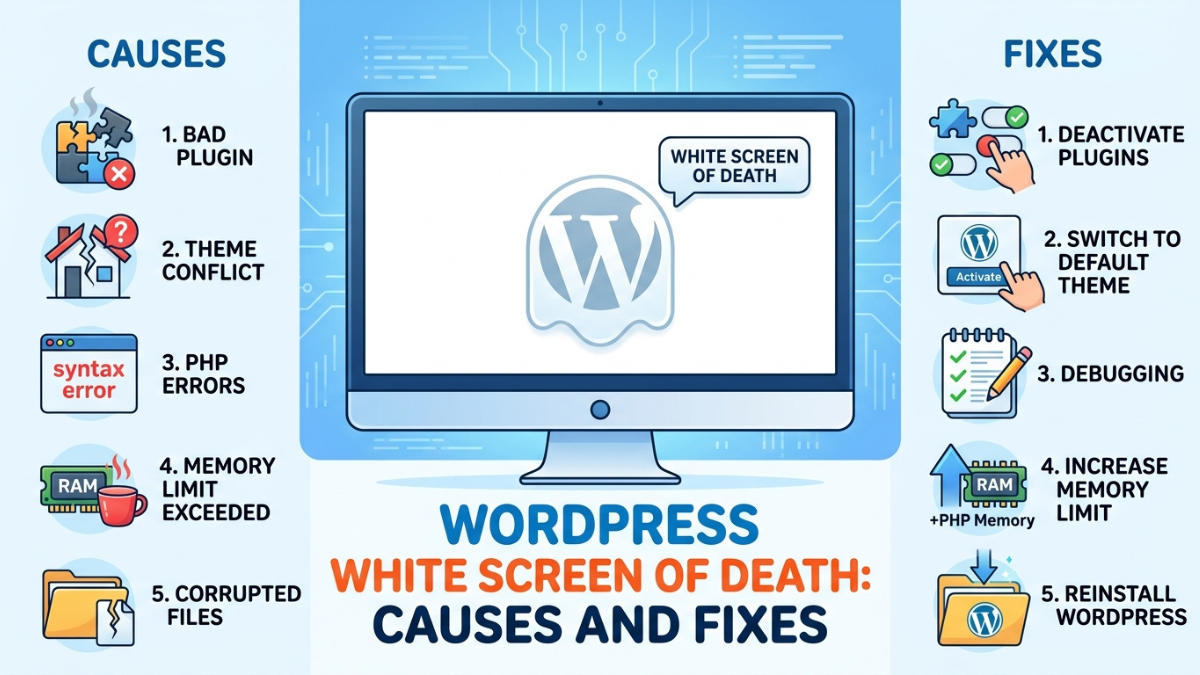
If you’ve ever loaded your WordPress site only to be greeted by a completely blank, white page, you’ve experienced the WordPress White Screen of Death (WSOD). No error message, no obvious clue — just an empty screen where your website used to be. For site owners and administrators, this is one of the most unsettling problems in WordPress because it gives you almost nothing to work with.
The WordPress White Screen of Death typically happens when a PHP script exceeds its memory limit, a plugin or theme conflicts with your core files, or a fatal error occurs somewhere in your site’s code. Because WordPress often suppresses error output by default, the result is a blank white screen instead of a helpful message. This can affect your entire site, just the admin dashboard, or even lock you out completely.

The good news is that the WordPress White Screen of Death is almost always fixable once you understand its root cause. Below are ten proven approaches to diagnosing and resolving this issue, along with the pros and cons of each so you can choose the right fix for your situation.
Enable WordPress Debug Mode
The first step in resolving the WordPress White Screen of Death is turning on debugging so you can actually see what’s failing. Adding define(‘WP_DEBUG’, true); and define(‘WP_DEBUG_LOG’, true); to your wp-config.php file forces WordPress to log errors instead of hiding them behind a blank page.
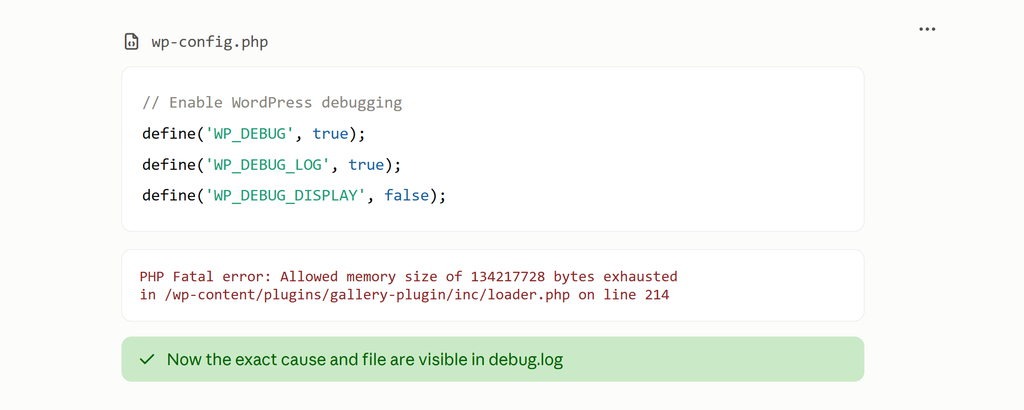
Pros: Free, fast, and gives you the exact file and line number causing the crash. It’s the recommended first move for any white screen issue.
Cons: Requires FTP or file manager access to edit wp-config.php. If your site is completely inaccessible, you’ll need another method to get in first. Debug mode should also be disabled again once you’ve fixed the problem, since leaving it on can expose sensitive information publicly.
Deactivate All Plugins
Plugin conflicts are the single most common cause of the WordPress White Screen of Death. A poorly coded or outdated plugin can trigger a fatal PHP error that halts the entire page from rendering. Renaming the wp-content/plugins folder via FTP (or deactivating all plugins through phpMyAdmin) forces WordPress to disable them all at once.

Pros: Extremely effective at isolating whether a plugin is the culprit; doesn’t require coding knowledge; reversible in seconds.
Cons: Temporarily disables site functionality that visitors may rely on. You’ll need to reactivate plugins one by one to find the offending one, which is time-consuming on sites with dozens of plugins.
Switch to a Default Theme
If disabling plugins doesn’t resolve the WordPress White Screen of Death, the theme is the next suspect. Switching to a default WordPress theme like Twenty Twenty-Four via FTP (by renaming your active theme’s folder) rules out theme-related PHP errors.

Pros: Quick to test, and confirms or eliminates the theme as a cause within minutes.
Cons: If your site was inaccessible before, this only helps if you can access files directly. It also won’t fix the issue if the problem lies in a child theme’s functions.php file interacting with a plugin, which requires further investigation.
Increase the PHP Memory Limit
A frequent cause of the WordPress White Screen of Death is simply running out of allocated memory. WordPress, plugins, and themes all consume PHP memory, and shared hosting environments often cap this at a low default. You can raise it by adding define(‘WP_MEMORY_LIMIT’, ‘256M’); to wp-config.php, or adjusting the limit in your hosting control panel or php.ini file.

Pros: Solves a large percentage of white screen cases, especially on sites with many plugins or large media libraries; low risk of breaking anything else.
Cons: Some shared hosts don’t allow memory limit changes without upgrading your plan. Increasing memory also treats a symptom rather than the underlying inefficiency — a resource-hungry plugin may still slow things down elsewhere.
Restore From a Backup
If the WordPress White Screen of Death appeared right after a bad update or file corruption, restoring a recent backup can be the fastest fix. Most managed hosts and backup plugins (UpdraftPlus, BackupBuddy) let you roll back to a point before the issue occurred.
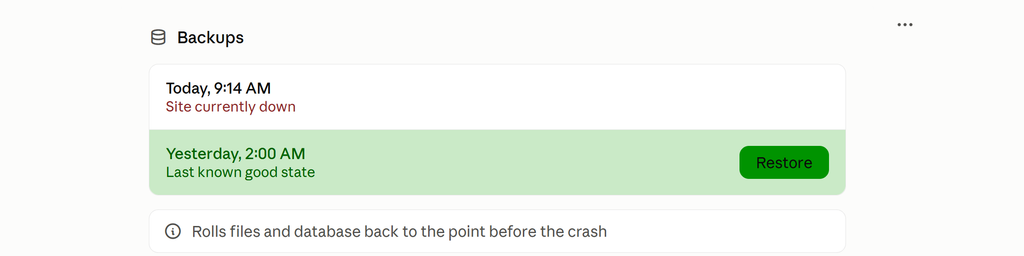
Pros: Fast, reliable, and doesn’t require diagnosing the exact cause — you simply revert to a known-good state.
Cons: You lose any content or changes made after the backup was taken. This isn’t a long-term fix either, since whatever caused the original crash could easily happen again if untreated.
Check and Repair the .htaccess File
A corrupted .htaccess file can sometimes trigger the WordPress White Screen of Death, particularly after a server migration or permalink change. Renaming the existing .htaccess file via FTP and letting WordPress regenerate a new one (by resaving your Permalinks settings) often resolves this.

Pros: Simple, non-destructive, and takes only a couple of minutes.
Cons: Only addresses a narrow subset of white screen causes. If your site is completely white with no admin access, you may not be able to resave permalink settings without first restoring access another way.
Verify PHP Version Compatibility
Outdated or mismatched PHP versions are an underappreciated cause of the WordPress White Screen of Death. Older themes or plugins may not support current PHP versions, or a recent PHP upgrade by your host may break legacy code. Checking your PHP version in your hosting dashboard and testing compatibility (or rolling it back temporarily) can resolve this.
Pros: Addresses root-cause compatibility issues rather than symptoms; improves overall site performance and security once resolved correctly.
Cons: Downgrading PHP is only a temporary patch — outdated PHP versions carry security risks. Updating outdated plugins or themes to be compatible is more sustainable but takes more time and testing.
Access the Site via phpMyAdmin or FTP to Fix Fatal Errors
When the WordPress White Screen of Death locks you out of both the front end and the dashboard, direct file or database access becomes necessary. Using FTP to inspect recently modified files, or phpMyAdmin to disable a plugin at the database level (via the wp_options table), lets you bypass the broken interface entirely.
Pros: Works even in worst-case scenarios where the dashboard is completely inaccessible; gives full control over the fix.
Cons: Requires more technical comfort with file systems and databases. Mistakes made directly in the database can cause additional damage if you’re not careful, so backups beforehand are essential.
Reinstall WordPress Core Files
Sometimes the WordPress White Screen of Death stems from corrupted or incomplete core files, often due to an interrupted update. Re-uploading fresh copies of the wp-admin and wp-includes folders (without touching wp-content or wp-config.php) can resolve corruption without affecting your content.
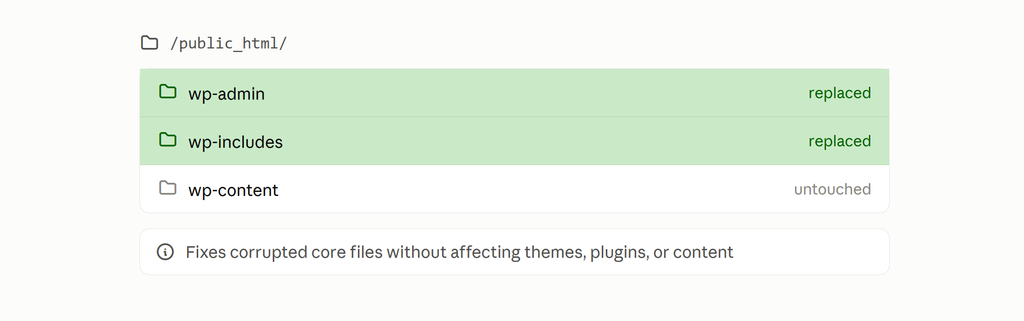
Pros: Fixes core-level corruption cleanly; doesn’t touch your themes, plugins, or database.
Cons: Requires downloading the correct WordPress version and careful FTP work to avoid overwriting custom files. Not effective if the root cause is a plugin or theme rather than core file corruption.
Contact Your Hosting Provider or a WordPress Developer
If none of the above resolves the WordPress White Screen of Death, or if you’re not comfortable working with FTP and code, your hosting provider’s support team can often check server logs for you, and many offer one-click restores. For more complex or recurring cases, hiring a WordPress developer ensures the issue is diagnosed and fixed properly.
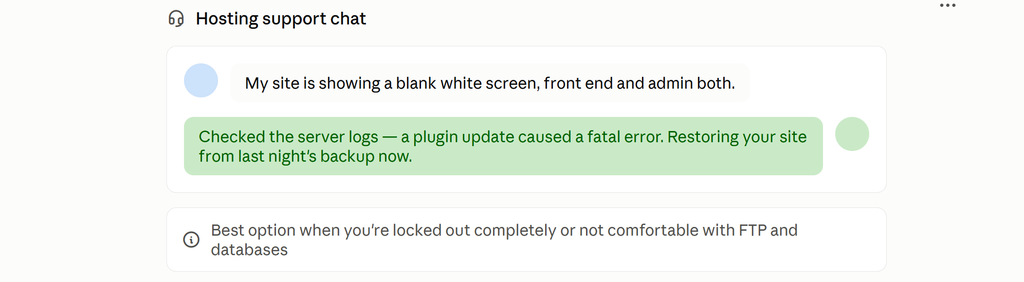
Pros: No technical expertise required on your part; hosting support can access server-level logs that aren’t visible to you; developers can identify subtle causes like plugin code conflicts.
Cons: May involve additional cost, especially for developer help. Response times from hosting support can vary, which isn’t ideal when your site is down and you need it fixed quickly.
Conclusion and Recommendations
The WordPress White Screen of Death can feel alarming, especially because it offers no immediate explanation. But as this guide shows, it’s a highly diagnosable and fixable problem once you work through the right steps in order.
For most site owners, the recommended approach is sequential: start by enabling debug mode to see the actual error, then deactivate plugins and switch themes to isolate the source. If those steps don’t resolve it, check your PHP memory limit and PHP version compatibility, since these two causes account for a significant share of white screen cases. Keep regular backups so that a restore is always available as a fallback, and don’t hesitate to reach out to your host or a developer if the issue involves server-level access or database corruption you’re not comfortable handling yourself.
Ultimately, preventing the WordPress White Screen of Death from happening in the first place is easier than fixing it after the fact. Keep plugins and themes updated, test major changes on a staging site before pushing them live, monitor your PHP memory usage, and maintain automated backups. With these habits in place, you’ll rarely encounter the white screen — and if you do, you’ll know exactly where to start.