Seeing a blank white screen with only a bold line of black text is a terrifying experience for any website owner. If you run a business or blog, experiencing this downtime can cost you visitors, sales, and SEO rankings. Website owners across the Unitedstates frequently encounter this exact nightmare. This happens when your website’s code cannot communicate with its database, meaning it cannot retrieve your content, user data, or settings.
How to Fix Error Establishing a Database Connection
If you are panicking and searching for ways to How to Fix Error Establishing a Database Connection, you are in the right place. Whether your hosting server is located in the United states or abroad, this guide covers the most effective troubleshooting steps. Read on to discover eight proven solutions to Fix Error Establishing a Database Connection and get your website back online.
What This Error Actually Means
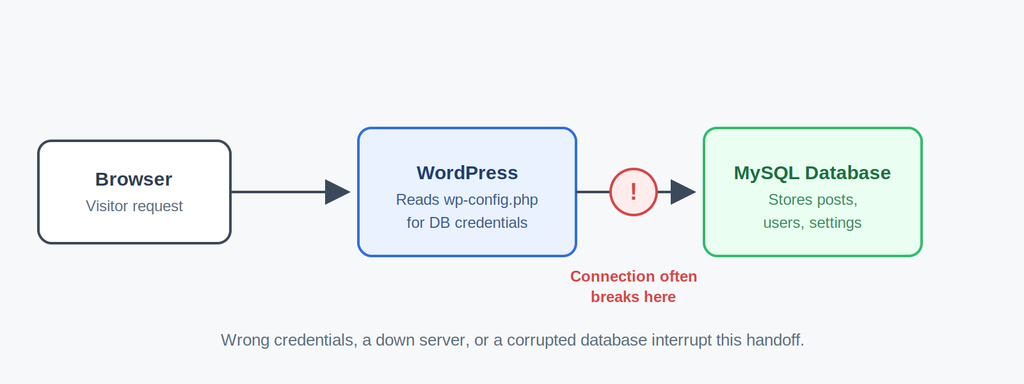
WordPress is a dynamic platform — every page you see is assembled on the fly by pulling content out of a MySQL (or MariaDB) database. Your posts, pages, settings, plugin data, and user accounts all live there. When WordPress tries to talk to that database and fails, it can’t build the page, so it shows you this generic error instead of your site.
The message doesn’t tell you why the connection failed, which is why it feels so frustrating. But the causes almost always fall into one of these buckets:
- Incorrect database credentials in your wp-config.php file
- A corrupted WordPress database
- A database server that’s down, overloaded, or unreachable
- A corrupted wp-config.php or core file
- Your hosting account has hit its resource or database limits
Let’s fix them one at a time.
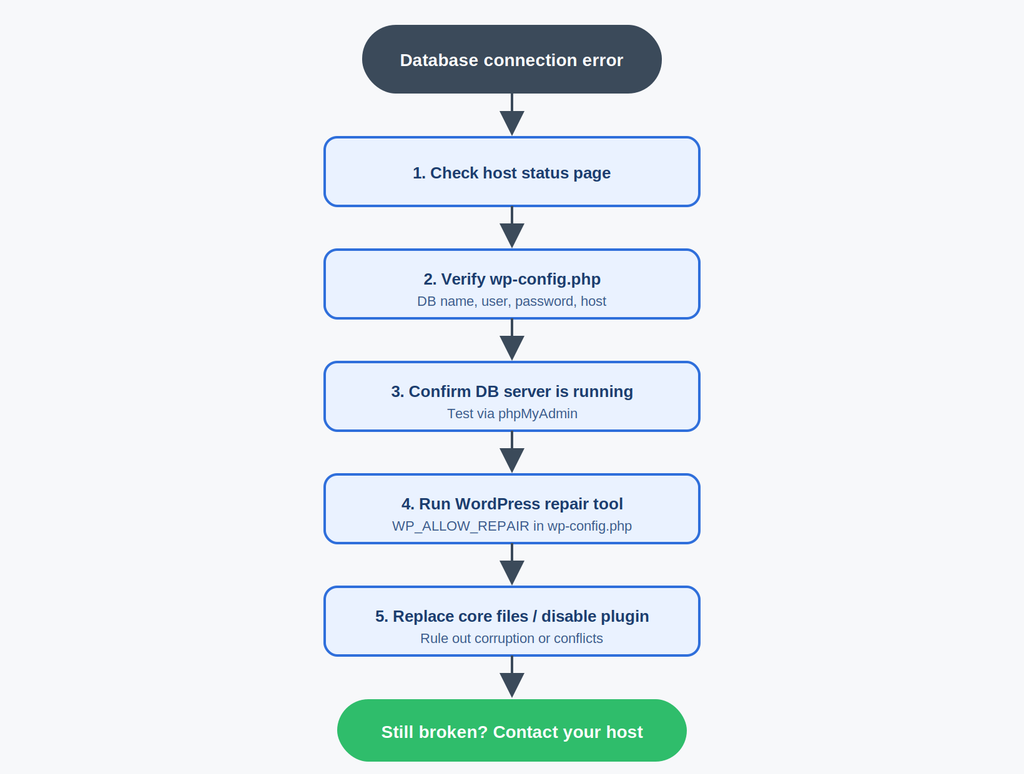
Step 1: Check If It’s a Site Issue or a Hosting Issue
Before touching any files, log in to your hosting account’s control panel (cPanel, Plesk, or your host’s custom dashboard) and see if there’s a banner or notice about server issues, maintenance, or your account being suspended. Many hosts display an alert here before you even dig into WordPress. If your host confirms an outage, there’s nothing to fix on your end — just wait it out or contact support.
If everything looks normal there, move on to the next steps.
Step 2: Verify Your Database Credentials in wp-config.php
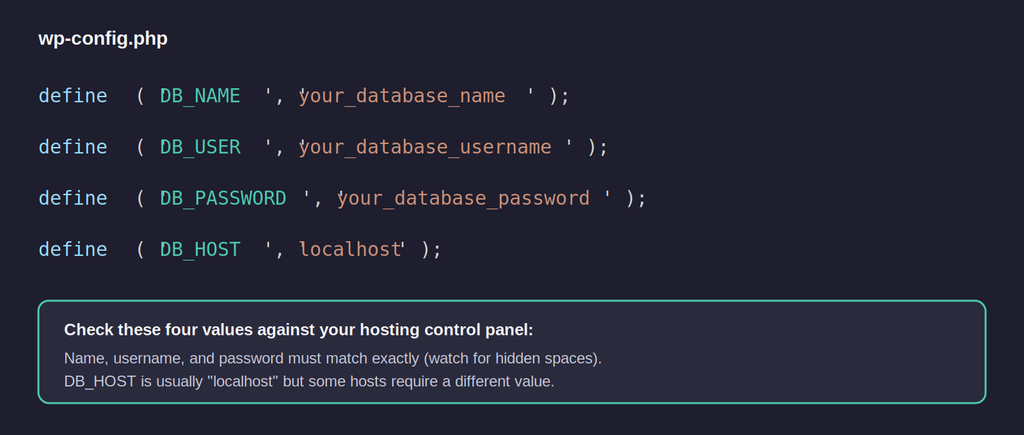
This is the single most common cause of this error. Your wp-config.php file stores the database name, username, password, and host that WordPress uses to connect. If any of these are wrong — even a single typo — the connection fails.
How to check it:
- Connect to your site via FTP, SFTP, or your host’s File Manager.
- Locate wp-config.php in your site’s root folder and open it in a text editor.
- Look for these four lines near the top:
php
define( ‘DB_NAME’, ‘your_database_name’ );
define( ‘DB_USER’, ‘your_database_username’ );
define( ‘DB_PASSWORD’, ‘your_database_password’ );
define( ‘DB_HOST’, ‘localhost’ );
- Log in to your hosting control panel and open the database management tool (usually phpMyAdmin or a “Databases” section in cPanel).
- Confirm that the database name, username, and password shown there match exactly what’s in wp-config.php. Watch out for hidden spaces, especially if you copy-pasted the password.
If your password recently changed (some hosts rotate credentials automatically, or you may have reset it yourself and forgotten to update the file), update wp-config.php with the current password and save the file.
About DB_HOST: most sites use localhost, but some hosts — particularly larger shared or managed hosting providers — require a different value, such as an IP address or a specific hostname. Your host’s documentation or support team can confirm the correct value if localhost doesn’t work.
Step 3: Confirm the Database Server Is Actually Running
Sometimes the credentials are perfectly fine, but the database server itself is down or unreachable, often due to too many simultaneous connections, a temporary outage, or a server-side crash.
- Check your hosting dashboard for the database’s status.
- Try connecting to the database directly through phpMyAdmin. If phpMyAdmin also fails to load or times out, the issue is on the server side, not with WordPress.
- If you’re on shared hosting and traffic to your site has spiked recently, you may have hit a connection limit imposed by your hosting plan. Contact your host and ask if you’ve exceeded any database connection caps.
If the server is down, this isn’t something you can fix from within WordPress — you’ll need to open a support ticket with your host.
Step 4: Check for a Corrupted Database
If credentials are correct and the server is healthy, the database itself may have become corrupted. This can happen after an interrupted update, a bad plugin, or a server crash mid-write.
WordPress has a built-in repair tool for exactly this situation:
- Open wp-config.php again.
- Add this line anywhere above the line that says /* That’s all, stop editing! Happy publishing. */:
php
define( ‘WP_ALLOW_REPAIR’, true );
- Save the file, then visit https://yourdomain.com/wp-admin/maint/repair.php in your browser.
- You’ll see two options: “Repair Database” and “Repair and Optimize Database.” Choose the second one for a more thorough fix.
- Let it run — this can take a few minutes depending on your database size.
- Once finished, remove the WP_ALLOW_REPAIR line from wp-config.php again. Leaving this page accessible is a security risk since anyone who finds the URL can run it.
Step 5: Increase Server Resources (If You’re on Shared Hosting)
If your site gets a sudden traffic spike, a shared hosting plan can run out of allowed database connections, producing this exact error intermittently rather than constantly. Signs this is your issue:
- The error appears and disappears without you changing anything
- It tends to happen during traffic surges
- Other sites on the same shared server (if you have access to check) show similar symptoms
The fix here is usually to contact your host and ask about upgrading your plan, or moving to a host with better database resource allocation. Managed WordPress hosts typically handle this more gracefully than basic shared hosting.
Step 6: Rule Out a Corrupted Core File or Bad Plugin
Rarely, this error is triggered not by the database at all, but by a corrupted WordPress core file that’s supposed to handle the connection.
To check:
- Download a fresh copy of WordPress from wordpress.org that matches your current version.
- Via FTP, replace the wp-admin and wp-includes folders on your site with the fresh versions. Do not touch wp-content — that’s where your themes, plugins, and uploads live.
- Reload your site.
If a recently installed or updated plugin caused a conflict with the database connection (this can happen with poorly coded caching or database-optimization plugins), rename that plugin’s folder inside wp-content/plugins via FTP to disable it, then check if the site loads again.
Step 7: Restore From a Backup
If none of the above resolves it and you have a recent backup, restoring the database from before the error appeared is often the fastest way back online, especially if the corruption is deep or the cause is unclear. Most hosts keep automatic backups you can restore from your control panel; if you use a backup plugin, its restore feature works the same way.
When to Contact Your Host
If you’ve checked your credentials, confirmed the database exists, run the repair tool, and the error persists, it’s time to loop in your hosting provider’s support team. They can check server logs, confirm whether the MySQL service is running properly on their end, and see details you don’t have access to from the WordPress side. Mention specifically that you’re seeing “Error Establishing a Database Connection” and what steps you’ve already tried — this saves time and usually gets you a faster, more targeted answer.
Preventing This Error in the Future
A few habits go a long way toward avoiding a repeat of this:
- Keep backups on a regular schedule, ideally daily if your site updates frequently.
- Update plugins and themes one at a time rather than in bulk, so if something breaks, you know exactly what caused it.
- Monitor your hosting resource usage, especially if your traffic is growing, so you can upgrade before you hit a hard limit.
- Store your database credentials somewhere safe so you’re never stuck guessing after a password reset.
Utilize Built-in Database Repair Tools
Sometimes, the database isn’t disconnected; it’s just corrupted. Content management systems like WordPress have hidden repair features. You can enable this by adding a line of code (define('WP_ALLOW_REPAIR', true);) to your configuration file, then visiting the designated database repair URL on your domain. This automated tool is a brilliant way to Fix Error Establishing a Database Connection.
- Pros: Highly automated, incredibly fast, and repairs tables without requiring complex SQL commands.
- Cons: It poses a security risk. You must remember to remove the line of code immediately after the repair is finished, or anyone could access your repair page.
Contact Your Web Hosting Provider
If you haven’t touched any files and the error appeared out of nowhere, the problem might not be on your end. High traffic spikes—very common for e-commerce sites in the Unitedstates during holidays—can overwhelm shared servers. Reaching out to your hosting provider is a stress-free way to Fix Error Establishing a Database Connection.
- Pros: Requires zero technical knowledge. Support teams can usually pinpoint the exact cause instantly.
- Cons: You are at the mercy of their support queue. It could take minutes or hours to get a response depending on your hosting tier.
Check if the Database Server is Down
Before making drastic changes, test whether your database server is actively running. You can do this by trying to log into phpMyAdmin through your hosting dashboard. If the page refuses to load or throws an error, your MySQL/MariaDB server is likely down. Knowing this helps you Fix Error Establishing a Database Connection by pointing you directly to a server-side resolution rather than tinkering with your site’s files.
- Pros: Isolates the root cause perfectly so you don’t waste time breaking your own site files.
- Cons: If the server is down and you are on shared hosting, you cannot fix it yourself; you have to wait for the host to resolve it.
Restore Your Site from a Recent Backup
When all else fails, a clean backup is your best friend. If a recent plugin update or database migration caused the crash, rolling back to yesterday’s version of your site is a foolproof way to Fix Error Establishing a Database Connection.
- Pros: Guaranteed to work if the error was caused by a recent user mistake or corrupted update.
- Cons: You will lose any new data, content, or customer orders generated between the time the backup was taken and the time you restored it.
Replace Corrupted Core Files
Sometimes hackers, malware, or interrupted updates can corrupt the core files of your website, severing the link to the database. To Fix Error Establishing a Database Connection in this scenario, you need to download a fresh copy of your CMS (like WordPress) and carefully replace the core files (like the wp-admin and wp-includes folders) via FTP, leaving your custom content untouched.
- Pros: Clears out hacked files and instantly resolves errors caused by botched software updates.
- Cons: Highly technical. If you accidentally overwrite your configuration file or content directory, you could break the site further.
Update Your Site URL via Database
If you recently migrated your site or added an SSL certificate (changing HTTP to HTTPS), a mismatch in your site URL can sometimes trigger a database lockout. Using phpMyAdmin to access your database and manually verifying the “siteurl” and “home” fields is a backend method to Fix Error Establishing a Database Connection.
- Pros: Resolves complex migration errors that other methods cannot fix.
- Cons: Editing raw database tables is risky. One wrong click or typo can cause permanent data loss.
Reboot Your Web Server
If you are running your website on a Virtual Private Server (VPS) or a dedicated server in the Unitedstates, you have root access. When a server runs out of memory, the database service is usually the first thing to crash. Simply logging in via SSH and rebooting the server (or just restarting the MySQL service) is a highly effective way to Fix Error Establishing a Database Connection.
- Pros: Instantly clears memory bottlenecks and brings the database back online within seconds.
- Cons: Only applicable to users with unmanaged or VPS hosting. Requires SSH/command-line knowledge.
Conclusion and Recommendations
Encountering website downtime is stressful, but there is always a logical reason behind it. To successfully Fix Error Establishing a Database Connection, we recommend a methodical approach.
Our top recommendations:
- Start small: Always check your configuration files for typos in your username, password, or database host first.
- Check server health: Before tearing your hair out editing code, message your web host to ensure there isn’t a widespread outage in the Unitedstates affecting your server.
- Keep daily backups: If things go completely sideways, having a one-click restore option saves you hours of troubleshooting.
By following these eight strategies, you are well-equipped to Fix Error Establishing a Database Connection and secure your website’s uptime for the future.
Hello techtasklab.co.uk,
Utilize ethical strategies to attract 10 to 20 motivated clients to your business.
Would you like me to send additional details and solutions?
Well wishes,
Tommy Zapesr | Digital Marketing Manager
Note: – If you’re not Interested in our Services, send us “opt-out”