
Learn how to use ChatGPT Excel formulas to create, improve, and fix formulas with practical examples and simple step-by-step guidance.
Excel formulas can save a huge amount of time, but finding the right formula is not always easy.
You may know exactly what you want to do with your data but still struggle to remember whether you need IF, VLOOKUP, XLOOKUP, INDEX, MATCH, or a combination of several functions.
This is where ChatGPT can be useful.
Instead of searching through dozens of tutorials or trying different formulas until one works, you can describe what you want to achieve and ask ChatGPT to help you build the formula.
However, there is one important thing to understand: ChatGPT is only as useful as the information you give it.
In this guide, I will show you how to use ChatGPT to create, understand, troubleshoot, and improve Excel formulas.
What Can ChatGPT Help You Do in Excel?
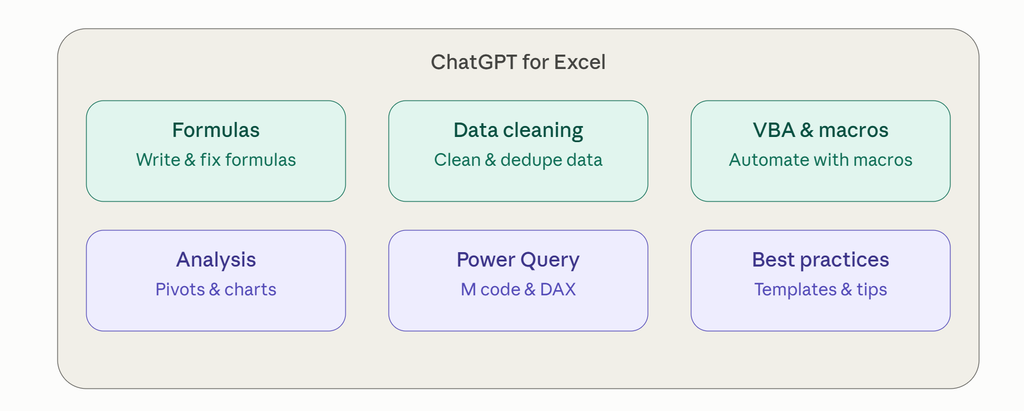
ChatGPT can help with many common Excel tasks, including:
- Creating formulas from a description
- Explaining formulas you do not understand
- Fixing formula errors
- Combining multiple formulas
- Working with text and numbers
- Extracting information from URLs
- Finding duplicates
- Creating conditional formulas
- Suggesting alternatives to complicated formulas
For example, instead of searching Google for the exact formula, you can explain your task in plain English.
You might say:
I have full URLs in column A and I want to extract only the domain name. Please give me an Excel formula.
ChatGPT can then suggest a formula based on the Excel version you are using.
The key is to give it enough context.
ChatGPT Excel Formulas Clearly Explain What You Want the Formula to Do
A vague prompt often produces a vague or incorrect answer.
For example, this prompt is not very helpful:
Give me an Excel formula.
ChatGPT has no idea what you are trying to achieve.
A better prompt would be:
I have customer names in column A and their purchase amounts in column B. I want to display “High Value” if the purchase amount is more than 10,000 and “Regular” if it is 10,000 or less. Please write the Excel formula for row 2.
Now the task is clear.
ChatGPT can understand:
- Where the data is located
- What condition you want to check
- What result you expect
- Which row the formula should start from
A more detailed prompt usually leads to a more useful answer.
A Simple Prompt Formula
When asking ChatGPT for an Excel formula, try to include these four things:
1. Where is the data?
Example: Customer names are in column A.
2. What do you want to do?
Example: Find duplicate names.
3. What should the result be?
Example: Display “Duplicate” if the name appears more than once.
4. Which Excel version are you using?
This can matter because newer versions of Excel support functions that older versions may not have.
Give ChatGPT a Small Example of Your Data
One of the best ways to get a better formula is to show a small example.
Imagine your spreadsheet looks like this:
| A | B |
| Customer | Amount |
| Ali | 5000 |
| Ahmed | 15000 |
| Sara | 8000 |
You could ask:
In column B, I have customer purchase amounts. I want a formula that displays “High Value” when the amount is above 10,000 and “Regular” when it is 10,000 or below. The first amount is in cell B2.
ChatGPT may suggest:
=IF(B2>10000,”High Value”,”Regular”)
The advantage of showing an example is that ChatGPT can better understand your data structure.
You do not always need to share your entire spreadsheet. A few sample rows are usually enough.
Ask ChatGPT to Explain the Formula
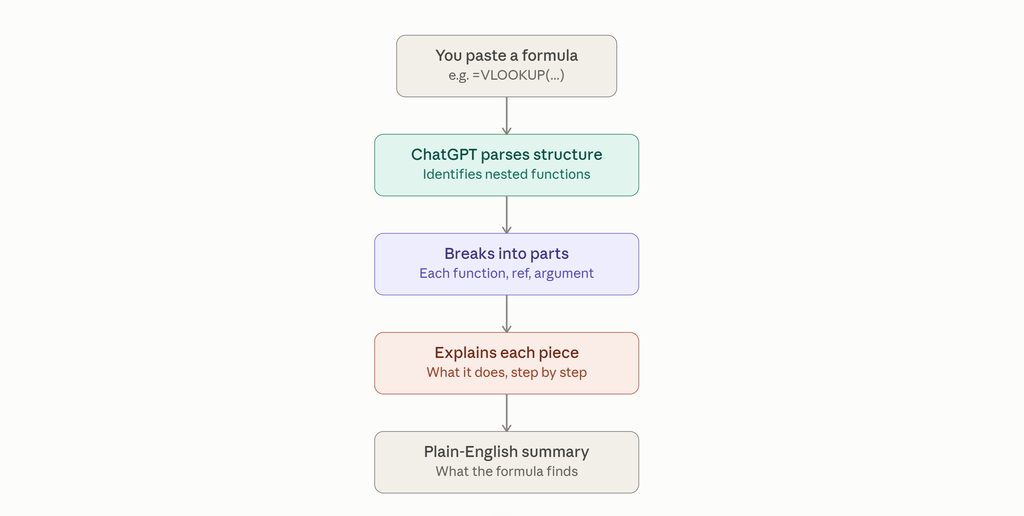
Getting the formula is only part of the job.
If you simply copy and paste a formula without understanding it, troubleshooting can become difficult later.
After ChatGPT gives you a formula, ask:
Explain this formula step by step in simple English.
For the formula:
=IF(B2>10000,”High Value”,”Regular”)
The explanation would be:
- B2>10000 checks whether the value in B2 is greater than 10,000.
- If the result is true, Excel displays High Value.
- If the result is false, Excel displays Regular.
This is especially useful when you are working with longer formulas.
Use ChatGPT to Fix a Formula That Is Not Working
Sometimes you already have a formula, but Excel returns an error or produces the wrong result.
Instead of asking:
My formula is not working.
Give ChatGPT the actual details.
For example:
This formula is returning #VALUE!: =A2+B2. Column A contains numbers, but some values in column B are stored as text. How can I fix this?
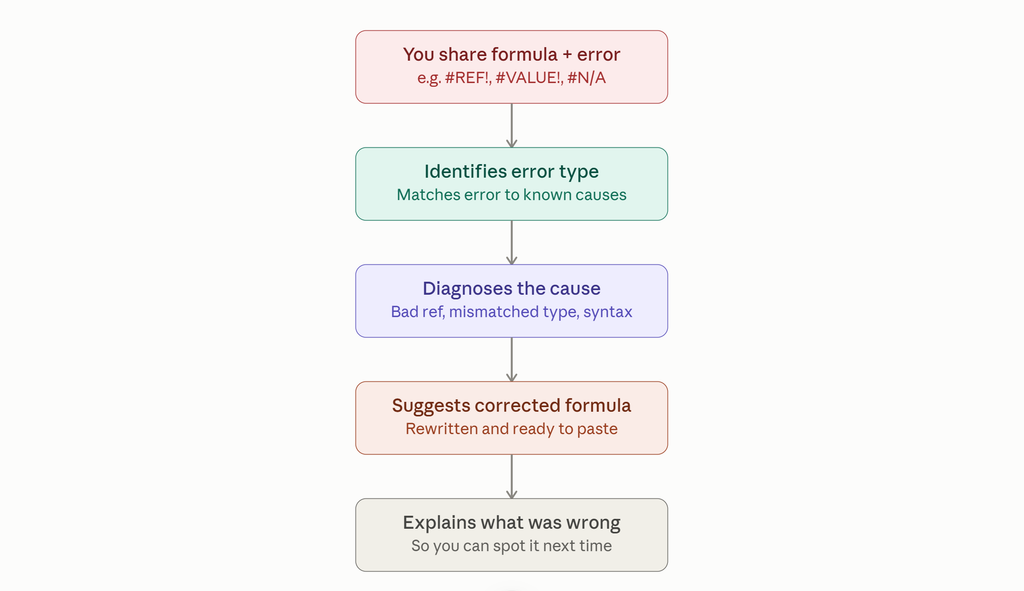
This gives ChatGPT something specific to investigate.
You should include:
- The formula you are using
- The error Excel shows
- A small example of the data
- What result you expected
This makes it much easier to identify the problem.
Ask for a Formula That Matches Your Excel Version
Not every Excel function is available in every version.
For example, some modern Excel functions may not work in older versions.
Before using a formula, you can ask:
I am using Excel [your version]. Will this formula work in my version? If not, give me an alternative.
This can save time, especially when ChatGPT suggests newer functions that your version of Excel does not support.
Ask ChatGPT to Simplify Complicated Formulas
Sometimes a formula works, but it is unnecessarily difficult to understand.
For example, you may have copied a long formula from an old spreadsheet.
You can paste it into ChatGPT and ask:
Can you explain what this Excel formula does and suggest a simpler version if possible?
This can help you:
- Understand old spreadsheets
- Remove unnecessary parts of a formula
- Discover newer functions
- Make formulas easier to maintain
However, always test the suggested formula before replacing the original.
Example: Using ChatGPT to Find Duplicate Data
Let’s say you have a list of customer names in column A.
https://www.example.com/page-one
You want Excel to display Duplicate if a name appears more than once.
You could ask ChatGPT:
I have customer names in column A starting from A2. I want to identify names that appear more than once. If a name is duplicated, display “Duplicate”; otherwise display “Unique”. Give me the formula for cell B2.
A possible formula would be:
=IF(COUNTIF(A:A,A2)>1,”Duplicate”,”Unique”)
The formula counts how many times the value in A2 appears in column A.
If it appears more than once, Excel displays Duplicate.
You can then drag the formula down the column.
Example: Extracting a Domain Name From a URL
This is a useful example if you work with website data.
Imagine column A contains:
You want to extract only:
example.com
Instead of searching for multiple formulas, you can describe the exact result you need to ChatGPT.
For example:
I have full website URLs in column A. I want to remove http, https, www, and everything after the domain name. I am using [your Excel version]. Please give me the simplest formula.
Depending on your version of Excel, ChatGPT may suggest different approaches.
This is why it is important to test the formula with several URLs, including:
- URLs with https
- URLs with http
- URLs with www
- URLs containing subdomains
- URLs with paths after the domain
Do not assume that a formula that works for one example will work for every possible URL.
Use Follow-Up Questions Instead of Starting Again
One useful advantage of using ChatGPT is that you can continue the conversation.
For example, after receiving a formula, you can ask:
This works, but some cells are blank. Can you modify the formula so blank cells stay blank?
Or:
Can you change this formula so it ignores spaces?
Or:
Can you make it work with data from another worksheet?
This is often faster than starting a completely new search for every small change.
Always Test the Formula Before Using It on Important Data
This is probably the most important step.
ChatGPT can generate incorrect formulas, misunderstand your data, or suggest a formula that works differently than you expected.
Before applying a formula to thousands of rows:
- Create a copy of your spreadsheet.
- Test the formula on a few rows.
- Check the results manually.
- Try unusual cases, such as blank cells or missing values.
- Only then apply it to the full dataset.
For important business, financial, or reporting spreadsheets, do not rely on an AI-generated formula without verifying the results.
Common Mistakes When Asking ChatGPT for Excel Formulas
Not Providing Enough Information
ChatGPT cannot accurately create the right formula if you only say:
I need an Excel formula.
Explain what your columns contain and what you want the final result to look like.
Forgetting to Mention Your Excel Version
Some functions may work in newer versions but not older ones.
Mention your version when compatibility matters.
Copying the Formula Without Testing
A formula may look correct but still fail because your data contains:
- Blank cells
- Extra spaces
- Text instead of numbers
- Different date formats
- Unexpected characters
Always test it first.
Sharing Sensitive Data
Avoid pasting confidential information into any AI tool.
If your spreadsheet contains customer details, financial information, passwords, personal information, or other sensitive data, use fictional sample data when asking for help.
A Prompt Template You Can Use
When you need help with an Excel formula, copy and modify this prompt:
I am using [Excel version]. My data is in [column/cell range]. The data looks like this: [small example]. I want to [describe the result you want]. Please give me the simplest formula and explain how it works. Also tell me about any common errors or special cases I should test.
This gives ChatGPT enough information to provide a more relevant answer.
Can ChatGPT Replace Excel Knowledge?
Not completely.
ChatGPT can help you find formulas faster, but understanding basic Excel concepts is still valuable.
You should gradually learn common functions such as:
- IF
- SUM
- SUMIF
- COUNTIF
- VLOOKUP
- VLOOKUP
- INDEX
- MATCH
- TEXT
- LEFT
- RIGHT
- MID
Once you understand the basics, you will be better able to check whether the formula ChatGPT gives you actually makes sense.
Final Thoughts
ChatGPT can be a useful assistant when you know what result you want but do not remember the correct Excel formula.
The best approach is not to simply ask:
Give me an Excel formula.
Instead, explain your data, show a small example, describe the expected result, and test the formula before using it on important information.
Use ChatGPT to speed up your work, understand difficult formulas, and troubleshoot problems—but always verify the final result inside Excel.
A good formula is not just one that produces an answer. It is one that continues to work correctly when your real data changes.
2 thoughts on “ChatGPT Excel Formulas How to Write Better Formulas with AI”